Using Aeromium .Net Barcode Library with the Barcode Fonts
Other topics
|
The Aeromium Barcode Library allows you to use barcode fonts in your .Net projects to display barcodes using text characters. The steps for doing so are as follows:
1. Add a reference to the Aeromium Barcode Library (AeromiumBarcodeLibrary.dll in the .Net DLL directory) in your .Net project.
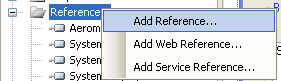
2. Use the namespace Net.BarcodeFonts.Aeromium to refer to the Aeromium Barcode Library.
For example, in C#, you can do so by declaring
using Net.BarcodeFonts.Aeromium;
In VB.Net, you can do so by declaring
Imports Net.BarcodeFonts.Aeromium
3. Create an instance of the class AeromiumBarcodes and set its input properties.
Common input properties are
BarcodeSymbology, which specifies the symbology to encode, for example Code39 or Code128
InputText, which specifies the data to be encoded.
ExtendedStyle, which specifies whether the style of the barcode is to be extended. Some barcodes are drawn in a special way such that certain vertical bars near the beginning, center and the end are intentionally made longer than the other bars. This has the advantage of making the human readable text easier to read. The barcodes that support this property are ISBN13, ISBN, ISSN, EAN13, EAN8, UPCE, UPCA.
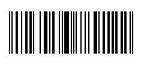
Without Extended Sytle
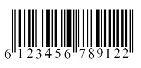
With Extended Sytle
CheckDigit, which specifies whether you will like the check digit to be appended to the barcode. This check digit functions as an extra digit or character that is read by the scanner and is used to verify that the data read is correct. For some barcodes, the check digit is mandatory, while the others' optional. This property lets you choose whether to add the check digit when it is optional. The barcodes that support the optional check digit are Code 39, Code 39 Extended, Industrial 2 of 5, I2of5, ITF14 and Modified Plessy.
AeromiumBarcodes abc = new AeromiumBarcodes();
abarcode.BarcodeSymbology = AeromiumBarcodes.BarcodeEnum.Code39;
abarcode.InputText = "1234567";
abarcode.CheckDigit = AeromiumBarcodes.YesNoEnum.Yes;
abarcode.BarcodeSymbology = AeromiumBarcodes.BarcodeEnum.Code39;
abarcode.InputText = "1234567";
abarcode.CheckDigit = AeromiumBarcodes.YesNoEnum.Yes;
4. Call the generate() method to make the barcode
abarcode.generate();
5. Retrieve the output string using the EncodedOuput property. The EncodedOuput is the actual text that can be set with the appropriate font to display the barcode.
string outputstr = abarcode.EncodedOuput;
6. Set the output string with the corresponding font. For example, if you are creating the Code39 Barcode, you will need to set the output string to the font FontCode39H3 or FontCode39H3_TR (Trial font)
Font fontz = new Font("FontCode39H3_TR", 26);
textbox.Text = outputstr;
textbox.Font = fontz;
textbox.Text = outputstr;
textbox.Font = fontz;
7. Optionally retrieve the human text using the HumanText property. The human text is usually a text string that is drawn below the barcode to help people to manually read the values in the event the barcode cannot be read with the scanner.
string humantext = abc.HumanText;
8. Optionally retrieve the EANText property if the barcode is ISSN, ISBN or ISBN13. These barcodes have an extra text string that is drawn above them.
Examples in C#
Examples of using Aeromium Barcode Library in a .NET 2 (or onwards) C# project.
|
using Net.BarcodeFonts.Aeromium; |
Code39 Example
|
AeromiumBarcodes abc = new AeromiumBarcodes(); abarcode.BarcodeSymbology = AeromiumBarcodes.BarcodeEnum.Code39; abarcode.InputText = "1234567"; abarcode.CheckDigit = AeromiumBarcodes.YesNoEnum.Yes; abarcode.generate(); string outputstr = abarcode.EncodedOuput; Font fontz = new Font("FontCode39H3_TR", 26); textbox.Text = outputstr; textbox.Font = fontz; |
EAN13 Example
|
AeromiumBarcodes abc = new AeromiumBarcodes(); abarcode.BarcodeSymbology = AeromiumBarcodes.BarcodeEnum.EAN13; abarcode.InputText = "1234567890"; abarcode.ExtendedStyle = AeromiumBarcodes.YesNoEnum.Yes; abarcode.generate(); string outputstr = abarcode.EncodedOuput; Font fontz = new Font("FontCodeEANEH3_TR", 26); textbox.Text = outputstr; textbox.Font = fontz; |
Code128 Example
|
AeromiumBarcodes abc = new AeromiumBarcodes(); abarcode.BarcodeSymbology = AeromiumBarcodes.BarcodeEnum.Code128_Auto; abarcode.InputText = "123456789"; abarcode.generate(); string outputstr = abarcode.EncodedOuput; Font fontz = new Font("FontCode128H3_TR", 26); textbox.Text = outputstr; textbox.Font = fontz; |
Note : The default font size for most barcodes is set to 26. But it can be adjusted to be larger or smaller. The font name needs to be appended with _TR for Trial fonts. textbox is a TextBox with Multiline set to True and WordWrap set to False
Example in VB.Net
| Imports Net.BarcodeFonts.Aeromium |
EAN13 Barcode with no ExtendedStyle
|
Dim abarcode As AeromiumBarcodes Dim outputstr As String Dim fontz As Font abarcode = New AeromiumBarcodes() abarcode.BarcodeSymbology = AeromiumBarcodes.BarcodeEnum.EAN_13 abarcode.InputText = "123456789" abarcode.ExtendedStyle = AeromiumBarcodes.YesNoEnum.No abarcode.generate() outputstr = abarcode.EncodedOuput fontz = New Font("FontCodeEANH3", 26) TextBox1.Font = fontz TextBox1.Text = outputstr |
Note : The default font size for most barcodes is set to 26. But it can be adjusted to be slightly bigger or smaller. The font name needs to be appended with _TR for Trial fonts. TextBox1 is a TextBox with Multiline set to True and WordWrap set to False
Goto Crystal Reports Barcodes.
Back to Barcode Fonts main page.